 Block Frame
Block Frame
Block FrameThe frame is a common area on which several control elements are placed – for instance all elements of one room. It structures the page and can be shown and hidden together with everything on it.
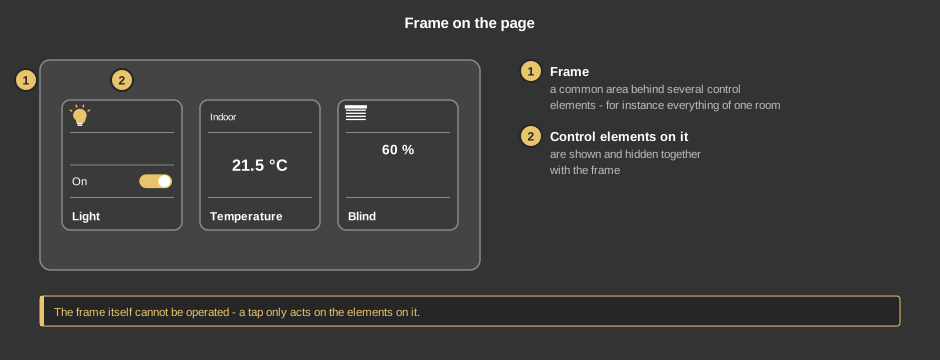
The frame itself has no function. If hiding is set up, it disappears together with all elements on it – for instance while a function of the system is not available.
This section is meant for the installer of the system.
First place the frame on the page, then drag the other control elements from the list onto the frame and drop them there. The frame thus becomes their parent element: they are moved together with it and handled as one unit when copying and pasting.
Display |
|
| View | Block: area in the look of the Block tiles with rounded corners. Basic screen: plain area. |
| Block lines | Only in the view Block. Draws a separating line at the top and at the bottom, a quarter of the height from the edge, as with the tiles. Default off. |
| Hide with | 1 (default) or 0: the value of the variable Hide at which the frame and its content disappear, see below. Only acts in the visualization, in the editor the frame always stays visible. |
| Hide | Optional. With Hide with 1 a value not equal to 0 hides the frame, 0 shows it. With Hide with 0 it is the other way round: 0 hides, not equal to 0 shows. Not linked: the frame always stays visible, regardless of whether Hide with 0 or with 1 is set. |
See also General properties of all control elements.