 Block Time switch Block Time switch
This control element is used to set up a time switch.
The control element is available in two different views, Block and Basic Screen. Depending on the design of the visualization, the element is shown in the following two variants:
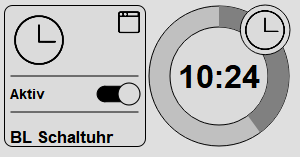
In the Block view the clock can be activated / deactivated with the Active switch. Clicking the icon shows the settings dialog.
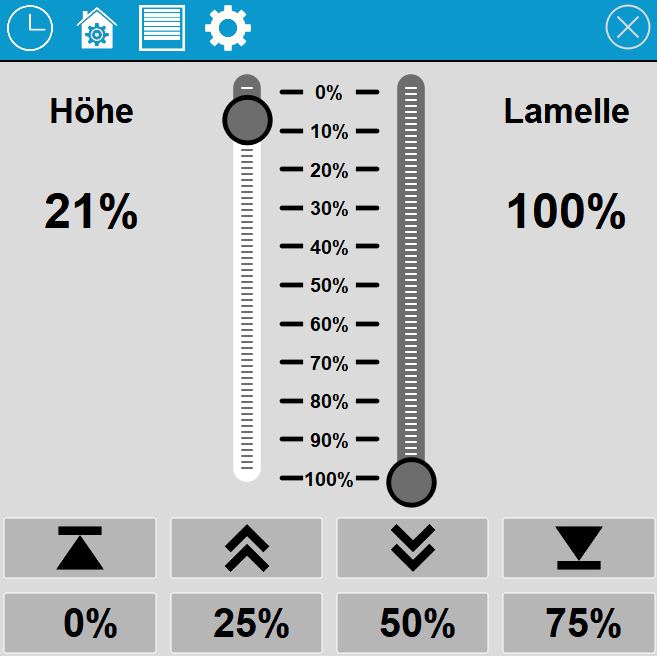
The Active switch toggles the clock active/inactive. The two icons on the left let you add switching times and sort or delete existing switching times. Click the + icon to add a new switching time.
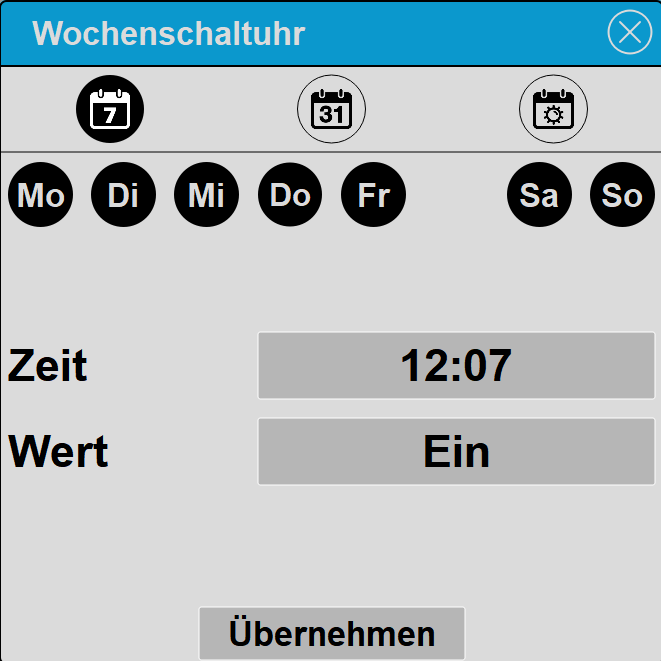
The first row sets the type of clock. Available types are Week clock, Date and Sunrise/Sunset. In the Value row you set the state that is to be switched at the configured time. Depending on the configuration this can be an on/off value or also a temperature. For Week clock and Date the "Execute" row selects between Always and Once - with Once the switching time is deleted automatically after it has triggered.
If the brightness input of the function block is linked, switching times of type weekly clock offer an additional Brightness setting that determines when the switching time is executed: Always, When bright or When dark. The corresponding thresholds are defined in the settings under Brightness. Without a linked brightness input the selection is not shown and the switching time is always executed.
The configured time is the earliest possible switching moment. If the condition is already fulfilled at that time (for example it is already dark at 19:00), switching happens immediately. If it is not yet fulfilled, the switching time is queued and executed as soon as bright or dark is detected - in the example only at nightfall. The queued switching time expires after six hours; if it does not get dark by then, no switching takes place. It is also discarded as soon as another switching time of the same element is executed - the more recent switching time always takes precedence. The brightness is checked every ten seconds. If Execute: Once is set as well, the switching time is only used up after it has actually switched.
Using the calendar icon in the switching time list, switching times can be imported from a calendar file (iCal, *.ics). Two switching times are created per event: at the start of the event the value 1 (on) is switched, at the end of the event the value 0 (off). Weekly recurring events become week switching times, single events and yearly series become date switching times. Before applying, a preview shows all events found; "Apply" imports all events.
Available sources:
Notes: If the calendar contains events of several years (e.g. holiday calendars), the desired year can be selected - the current year is preselected. The calendar source and the settings are remembered - the next time the import dialog is opened, the calendar is reloaded immediately and can be updated with "Apply" (recommended with the option "Replace existing" so that no duplicate switching times are created). Single events repeat yearly unless "Once" is selected under "Execute single events". Monthly recurrences, recurrences with an interval (e.g. every 2 weeks), exceptions of recurring events (EXDATE) and series end dates are not supported; such events are skipped or imported without limit and reported in the dialog. Event times with a time zone are taken over as local time.
| This
control element edits the switching times of a time switch, see function
block Time switch. The control element must be linked to the
function block for this. First create the function block, generate
the variables and then right-click the control element and select
the function block from the menu. The variables that are linked at
the function block are thereby automatically linked at the control
element as well. The clock has no on/off state; instead any number of switching times can be created, and at each point in time any value can be output. This makes it possible to define different setpoints for the switching times, for example 100% lighting in the morning, 50% during the day, 70% in the evening and 10% at night. In the same way you could switch the operating modes of room controllers (Comfort, Standby, Night). For this reason there is no clock on/off state. |
Display |
|
| View | View of the control element: Block, Basic Screen and List view. |
| Text | Text to display. The text size
is scaled automatically with the widget. Line breaks can be inserted
with the special character "\n", for example "Line1\nLine2"; a
maximum of two lines is possible. |
Value input |
|
| Type |
|
| Unit | Unit. It is appended to the value in the dialog. |
| Minimum/Maximum | If a setpoint
is changed with the clock, limit values can be specified with these
parameters. If Minimum and Maximum are 0, the limits are
ignored. |
| Steps | Here the steps for the setting
Type = Step can be configured. For example the operating modes for a room controller can be specified. 1 = Comfort, 2 = Standby, 3 = Night, etc.; when setting the time the system then switches between these steps. In this case a variable other than bit must be linked. With this option, for example, a bit value can also be inverted by setting 0 = On and 1 = Off, or for the function block Manual / Automatic, instead of 0/1/2, Automatic/Permanent on/Permanent off can be set. Each step consists of a value (switching value, e.g. "1") and a caption (e.g. "Comfort"). Using the MCP tools get_block_clock_steps and
set_block_clock_steps the step list can be read and
set as [{value, caption}]. |
| Longitude / Latitude |
Geographic position for calculating the sunrise and
sunset times. Only required if switching times of the type
Sunrise/Sunset are used. The position is selected via the "…" button
next to the field. |
Connected variables |
|
| Enable | Variable for the active state of the clock. The
"Active" switch of the control element switches the clock active or
inactive and writes this value. The variable is automatically
linked to the Enable input of the function block. |
| Brightness | Current brightness value (e.g. in lux). If this
variable is linked, individual switching times can be executed
depending on brightness (Always / When bright / When dark), based on
the thresholds "Bright above" and "Dark below". The variable is
automatically linked to the Brightness input of the function block. |