 Block Motion detector
Block Motion detector
Block Motion detectorThis control element sets up a motion detector: when it detects motion, it switches the light on and off again after an adjustable time – on request only when it is dark enough. In addition the light can be switched on or off permanently, for instance for a party or during the night.
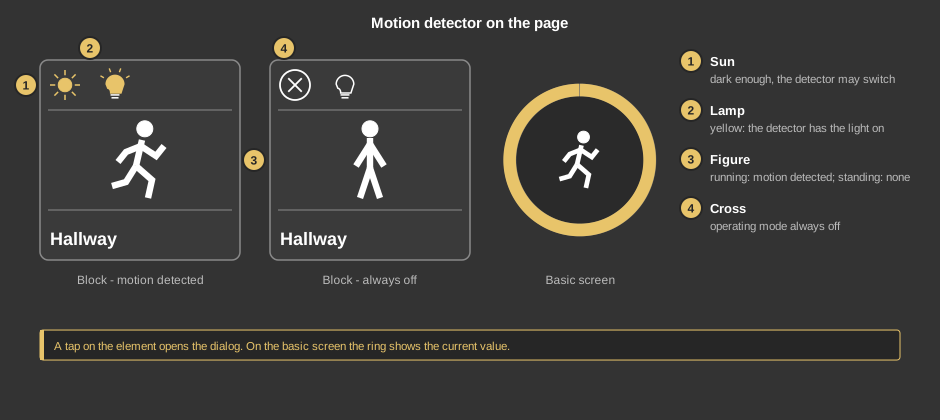
A tap on the element opens the dialog. As a circle (basic screen) the yellow ring shows the current value of the light, the cross then appears at the bottom right.
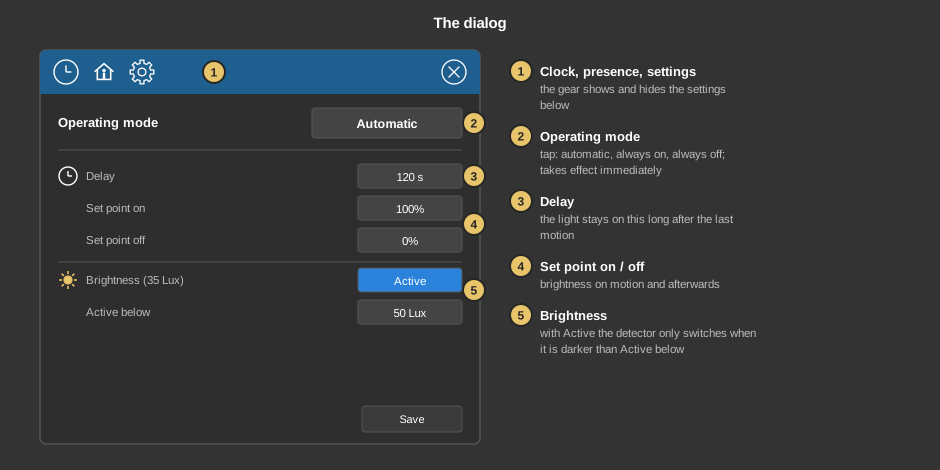
At first the dialog only shows the operating mode; the gear shows and hides the settings below it.
Save applies the settings.
Behind the clock are switching times that change the operating mode – for example to always on in the evening and back to automatic at night. Except for always off a brightness is given as well, which then applies as the set point on. Everything else about switching times is described under Presence.
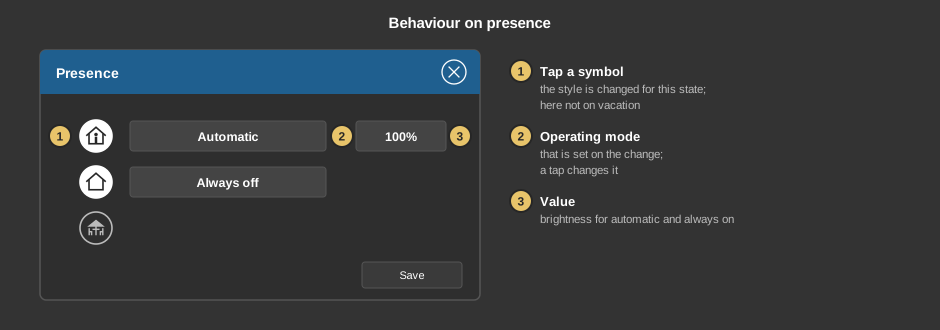
Behind the house it is set what happens when the presence changes. A tap on a symbol selects whether switching takes place at all for this state; next to it are the operating mode that is then set (a tap changes it) and the brightness for automatic and always on. In the example the detector works with 100 % when coming home, when leaving the house the light stays off.
This section is meant for the installer of the system.
The control element is linked to the function block Block motion detector: first create the function block and its variables, then right click on the control element and select the function block. See also Presence.
Display |
|
| Scene selection | Sets whether the element is offered for selection in the control element Block Scene Group. |
| View | Block or Basic Screen. The third choice List (deprecated) comes from older projects and should no longer be used. |
| Text | Caption of the tile. Its size scales with the element, a line break is inserted with \n, two lines at most. |
All variables sit at the function block.
See also General properties of all control elements.