 Block Switch Stage
Block Switch Stage
Block Switch StageThis control element selects between several steps, for instance the step of a ventilation or the operating mode of a device. The tile shows the current step, a tap opens the list of all steps.
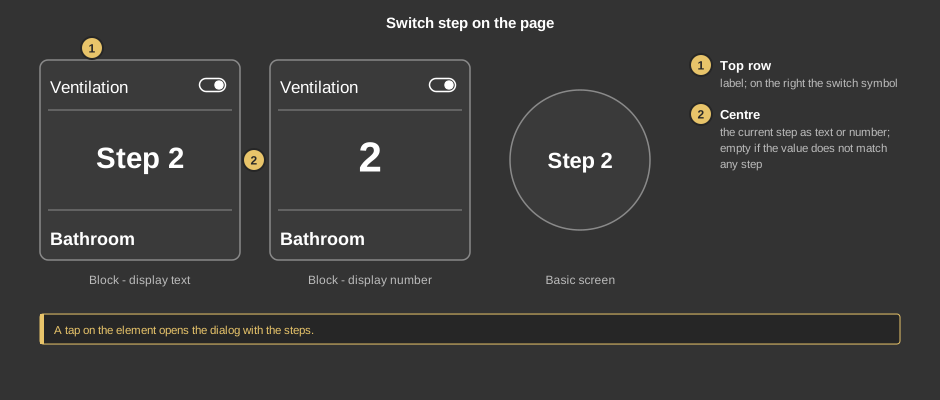
A tap on the element opens the dialog – on the tile as well as on the circle (basic screen).
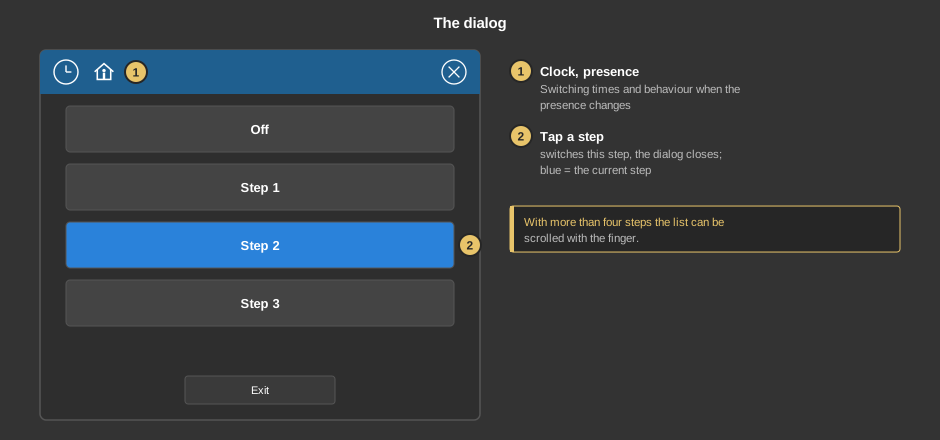
Exit closes the dialog without switching anything.
Behind the clock are switching times that switch a step at a certain time. Everything else about them is described under Presence.
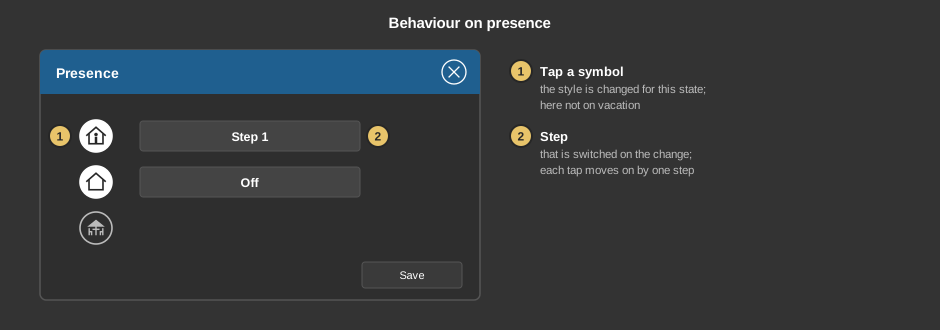
Behind the house you define which step is switched when the presence changes. A tap on a symbol selects whether anything is switched at all in this state; each tap on the field next to it moves on by one step, after the last one back to the first. In the example the ventilation runs at step 1 when coming home and goes off when leaving the house.
This section is meant for the installer of the system.
The control element comes in two variants:
The steps themselves are defined at the control element, see the parameter Parameter. Each step has a value that is sent when it is tapped, and a caption. The tile shows the step whose value equals the value of the variable.
Display |
|
| Scene selection | Defines whether the element can be selected in the control element Block Scene group. Default: on. |
| View | Block (tile) or Basic screen (circle with the current step). |
| Text top | Caption in the top row of the tile, empty by default. |
| Text bottom | Caption at the bottom of the tile. Its size scales with the element, a line break is inserted with \n, at most two lines. |
| Value display | Text shows the caption of the current step, Number its value. |
| Parameter | The button ... opens the list of steps. For each step a Value and a Caption are entered; + and – add a step or remove the last one. At least 2 and at most 32 steps are possible, the default is 2 with the values 0 and 1. The caption may have two lines with \n. |
| Zoom text step | Size of the step in the centre of the tile in percent, default 100. |
With the variant presence all variables sit at the function block. With the variant standalone the following are linked at the control element:
| Switch | When a step is tapped, its value is sent. |
| Status switch | Optional. Feedback of the device, it determines the step shown. Not linked: the value of the variable Switch applies. |
See also General properties of all control elements.