 Presence General
Presence General
Presence General The Presence function can optionally be used to trigger certain functions when the presence changes. Here it can be set at each control element what should happen when it changes. A distinction is made between the three states Present, Absent and Holiday (long-term).
At all elements the three states are indicated by the following symbols:

For example, the shading can be set so that it is active when Present or Absent and not on Holiday. In this way it can be set for all elements how they should behave when the status changes. In addition, any switching times can be defined for all elements, for example to switch on exterior lighting.
A control element which supports the Presence function (all elements from Structured Block - Presence operation) has no variable links. These control elements are always linked with the corresponding function block; the variables are always linked at the function block and not at the control element.
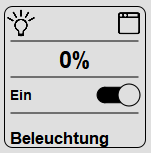
On the control element, click on the symbol at the top right to open the popup dialog. Tip: With a double-click on the element the linked addresses are selected in the address window in the Studio.
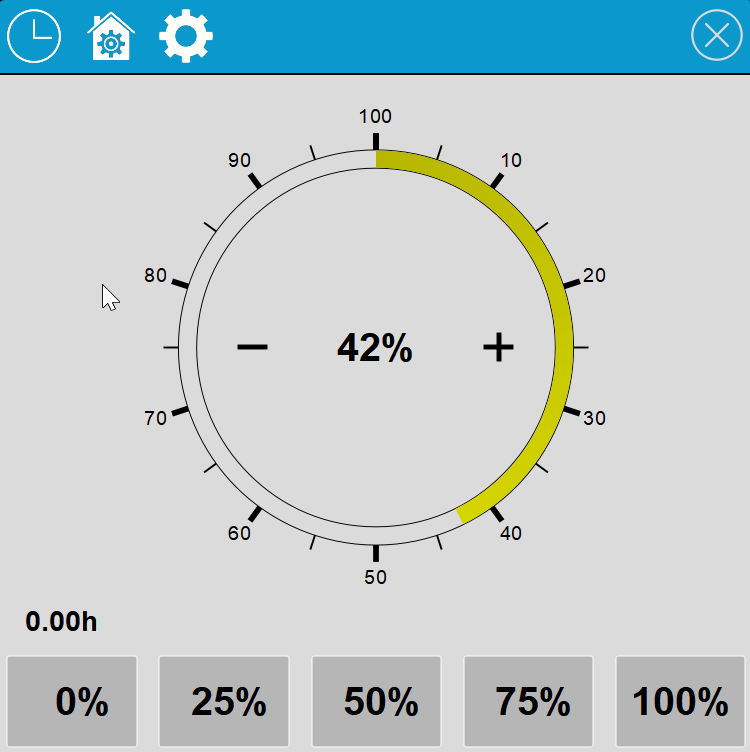
At the top left three symbols are shown, from left to right a clock, Presence (house+gear) and a gear for the settings:

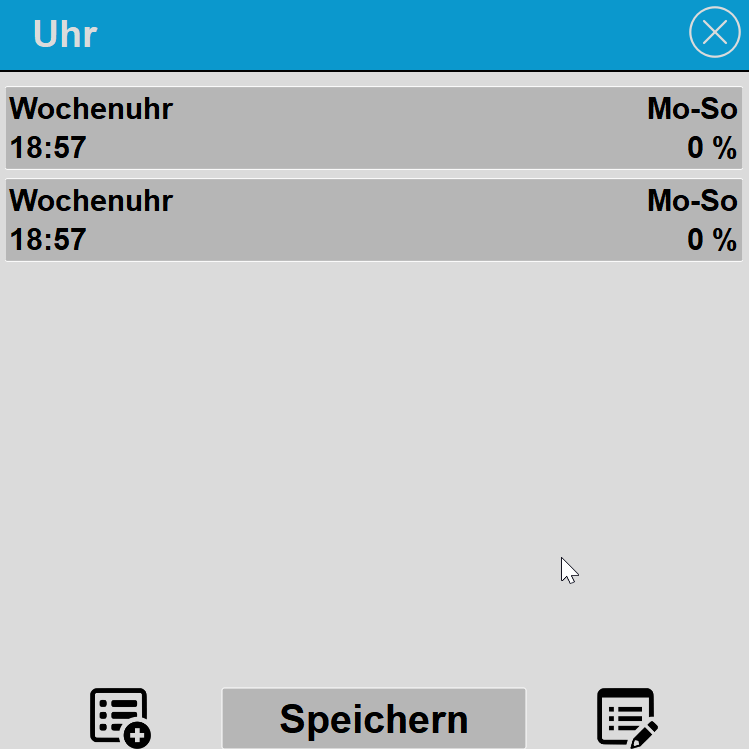
With the Timer function the lighting can be switched in a time-controlled manner. To add a new switching time, press the symbol at the bottom left; to delete switching times, click on the symbol at the bottom right.
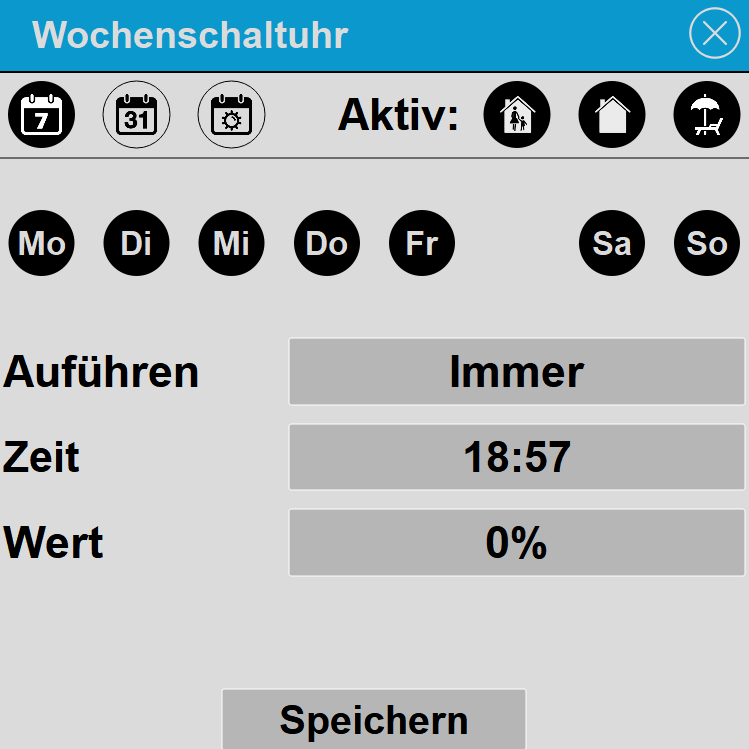
In the first line the symbols for the type of clock and presence are shown. On the left side the type of clock is set. As type you can choose Weekly clock, Date and Sunrise/sunset. On the right side it is set when the clock should be active (highlighted dark is active).
On the right side it is set when the switching time should be active. Present, Absent and Holiday. With this it can, for example, be selected that a switching time is only executed when you are present, but not when Absent or on Holiday. If none of the three symbols is active, the switching time is not executed; in the overview the clock is then shown as deactivated.
Under Execute, Once or Always can be selected. With Once, the symbols Present, Absent and Holiday are deactivated again after execution and thus the switching time is also deactivated.
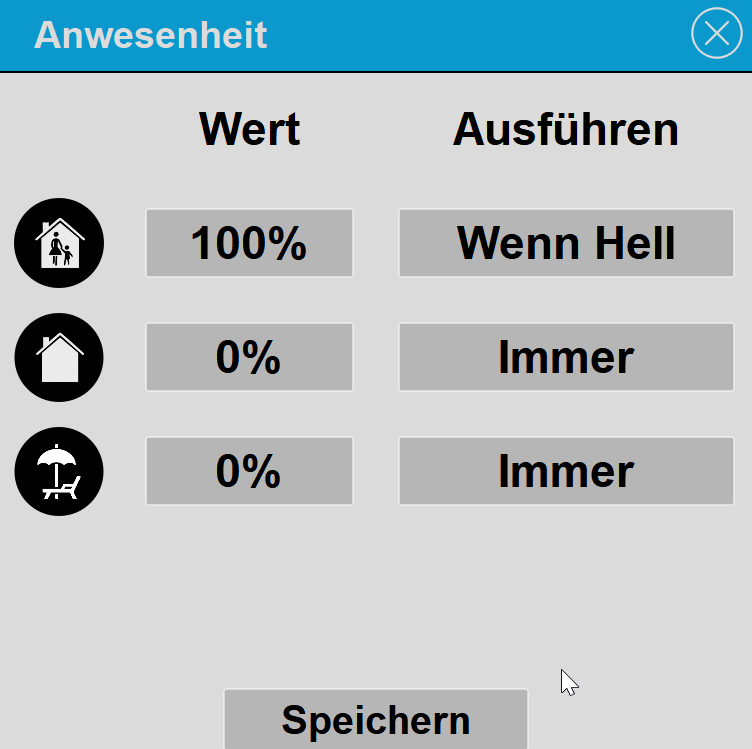
Via this dialog different light values can be set when the Present
status changes. For example, when switching from Present to Absent or
Holiday, the light is switched off in the example above. When switching
from Absent to Present, the light is set to 100%, but only when it is
dark.
Tip: The Dark or Bright setting is only shown when the Brightness input is linked at the function block. The threshold for Dark/Bright is defined in the settings.
The way it works is described here using the Light/Dimmer control element, but applies to all elements which support the presence function.
Tip: If you right-click on the control element, the submenu "Go to linked element" now appears; with this function you switch directly to the page with the linked function block. At the function block, too, you can switch back to the linked control element with the right mouse button.