 Block Roller shutter/Blinds
This control element moves a roller shutter or a venetian blind –
fully up, fully down or to a certain height, with a venetian blind also the
angle of the lamellas. On top of that there are switching times, the
behaviour on presence and absence, an automatic shading based on
the position of the sun, brightness and room temperature, and a presence
simulation.
Operation
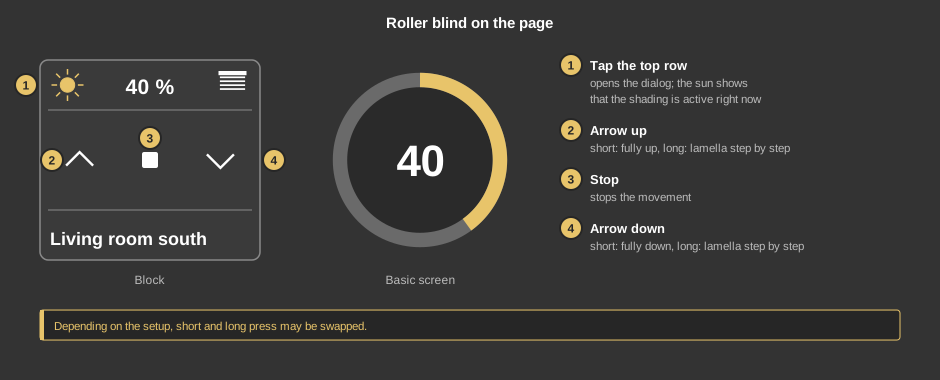
- Top row: shows the current height; a tap opens the dialog. A
sun on the left means the automatic shading is active right
now.
- Arrow up: a short tap moves fully up, holding for 2 seconds
moves the lamella step by step.
- Stop: stops the movement.
- Arrow down: a short tap moves fully down, holding for 2
seconds moves the lamella step by step.
Depending on the setup, short and long may be swapped. As a circle
(basic screen) the element shows height and lamella; a tap opens the
dialog.
The dialog
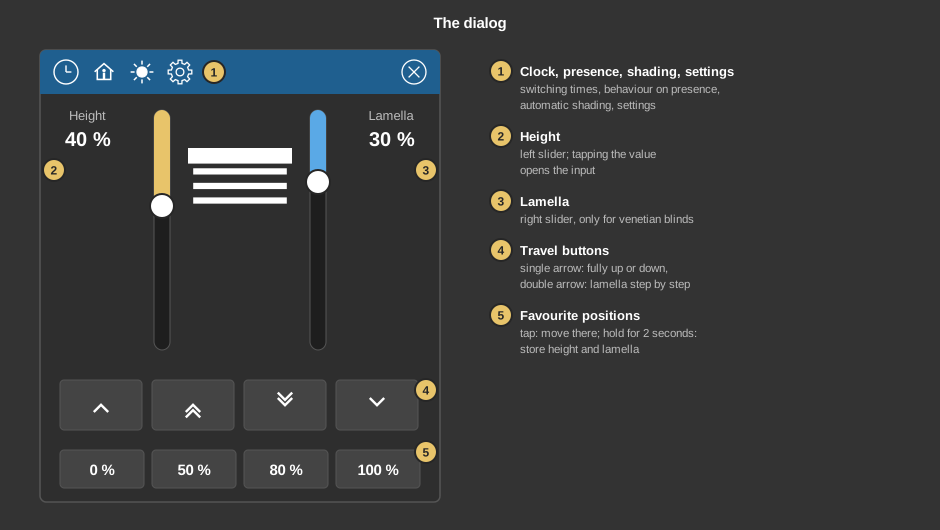
- Symbols of the title bar: clock, presence, shading (sun) and
settings, see below.
- Height: the left slider sets the height. A tap on the value
opens the input.
- Lamella: the right slider sets the angle of the lamellas
– only for venetian blinds.
- Travel buttons: the single arrow moves fully up or fully down,
the double arrow moves the lamella step by step.
- Favourite positions: a tap moves to the position. To assign a
new one, first set height and lamella, then hold the button for 2
seconds. A button can only be reassigned if the element is linked to
a function block. Without a block the factory positions remain.
Switching times and presence
Behind the clock are the switching times – for instance
moving up at 7 am and closing at sunset. Behind the house it
is set where to move when the presence changes, for example down when
leaving the house and up again when coming home. Both are described in
detail under Presence.
Automatic shading
The sun in the title bar opens the shading. It moves the blind by
itself to a protective position when the sun shines onto the window
– against glare or to keep the room from heating up. The dialog is
longer than the screen and is moved by dragging.
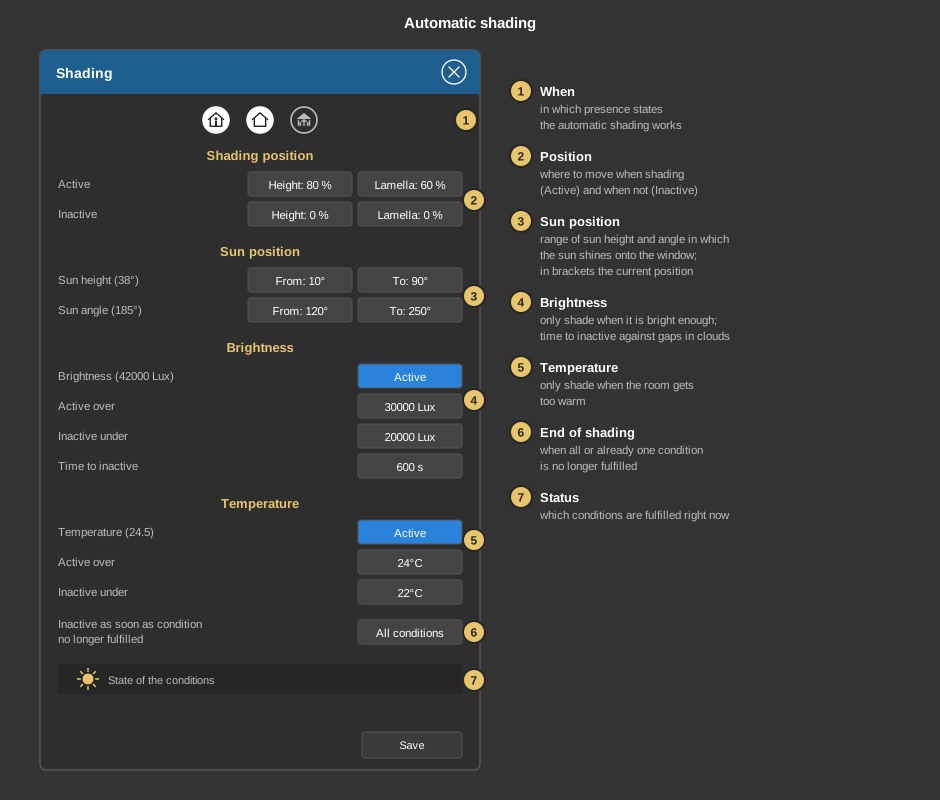
- When: the three symbols select in which presence states the
shading works – in the example when present and absent, not
during a vacation.
- Shading position: where to move while shading
(Active) and where to move when the shading ends
(Inactive) – height and lamella each.
- Sun position: range of sun height and sun
angle (direction) in which the sun shines onto this window. The
current position of the sun is shown in brackets – that makes it
easy to find the range on a sunny day.
- Brightness: with Active shading additionally only
happens when it is bright enough – so the blind stays up on dull
days. Shading starts above Active over and ends below
Inactive under, but only once it stays darker for as long as set
under Time to inactive. That way the blind does not go up with
every cloud.
- Temperature: with Active shading only happens when the
room is warmer than Active over; below Inactive under the
shading ends.
- Inactive as soon as condition no longer fulfilled: whether the
shading only ends when all conditions have gone, or as soon as
one is no longer fulfilled.
- Status: the last row shows which conditions are fulfilled right
now – for instance a sun when the brightness is sufficient.
Save applies the settings.
Settings
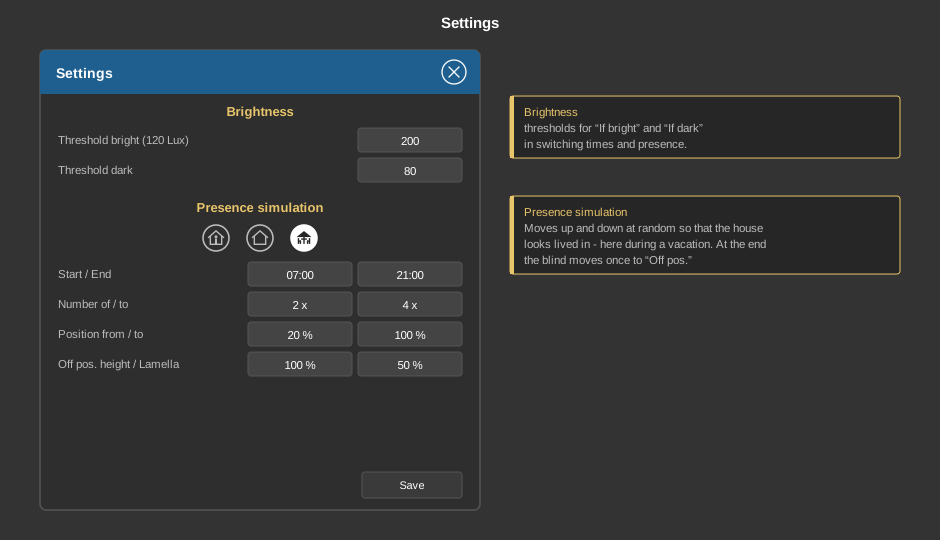
- Brightness: Threshold bright and Threshold dark
in lux – the thresholds for “If bright” and “If
dark” in switching times and presence. The measured value is shown
in brackets.
- Presence simulation: moves the blind up and down at random so
that the house looks lived in. The three symbols set when it runs
– usually during a vacation. Start / End is the period,
Number of / to how often it moves, Position from / to the
range of the random positions. At the end of the simulation the blind
moves once to Off pos. (height and lamella).
Setup
This section is meant for the installer of the system.
Two variants
- Operation presence – is linked to the
function block
Block Roller shutter/Blinds (right mouse button on the control
element). The variables sit at the function block. Only this variant
offers switching times, presence, shading and settings, see
Presence.
- Widgets Standalone – without function block, the
variables are linked directly at the control element. The dialog then
carries the text as its heading and has no symbols in the title bar. It
only opens when an address Height percent is linked.
The variables for the lamella are optional – for a roller shutter
they stay empty, then the lamella slider and display are hidden. Without an
address Shorttime the double arrows are left out in the
dialog.
Tip: If the transparency is set to 0 and a height is linked, a tap
on the whole area opens the dialog.
Parameters
| Scene selection |
Sets whether the element is offered for selection in
the control element Block
Scene Group. |
| View |
Block or Basic screen. |
| Text |
Caption of the tile. Its size scales with the element,
a line break is inserted with \n, two lines at most. |
| Lamella |
Display of the lamella angle, 90° or
180° – depending on how far the lamellas of the
blind turn. |
| Buttons mode |
- Short LT/Long ST: a short tap sends long time (fully up
or down), holding for 2 seconds sends short time (lamella).
- Short ST/Long LT: the other way round.
|
| Lamella delay |
Waiting time in seconds (0 to 600) before the lamella
setpoint is sent after the height. Meant for actuators that only
execute the last command: when a favourite position is recalled, the
height is sent first and the lamella after this time. Enter the
longest travel time of the height plus some safety margin. |
Variable links
With the variant presence all variables sit at the
function block.
With the variant standalone the following are linked at the control
element:
| Longtime |
Travel command fully up (0) or fully down (1). |
| Shorttime |
Optional. Step or stop command; the stop button
sends 0 here. Not linked: no lamella steps in the dialog. |
| Height percent |
Optional. Setpoint of the height, data type
EIS 6 %. Not linked: no dialog, no height display. |
| Lamella percent |
Optional. Setpoint of the lamella, EIS 6 %.
Not linked: the lamella slider is left out. |
| Status height / Status lamella |
Optional. Feedback of the actuator,
EIS 6 %. It is shown on the tile and in the dialog. Not linked:
the setpoint sent last is shown, without a height setpoint the
position from the last long time command (fully up or fully
down). |
See also General properties of all
control elements.