 Block
Motion Detector Block
Motion Detector
Block
Motion Detector Block
Motion Detector This control element controls a motion detector. See also Presence general.
The control element is available in two different views, Block and Basic Screen. Depending on the design of the visualization the element is displayed in the following two variants:
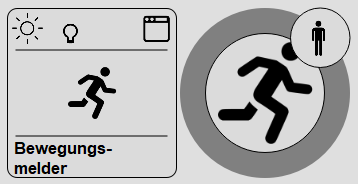
The state is represented by the symbols. A running stick figure indicates that the detector has been triggered. The sun symbol indicates whether the brightness threshold has been reached.
Clicking on the element displays the following dialog:
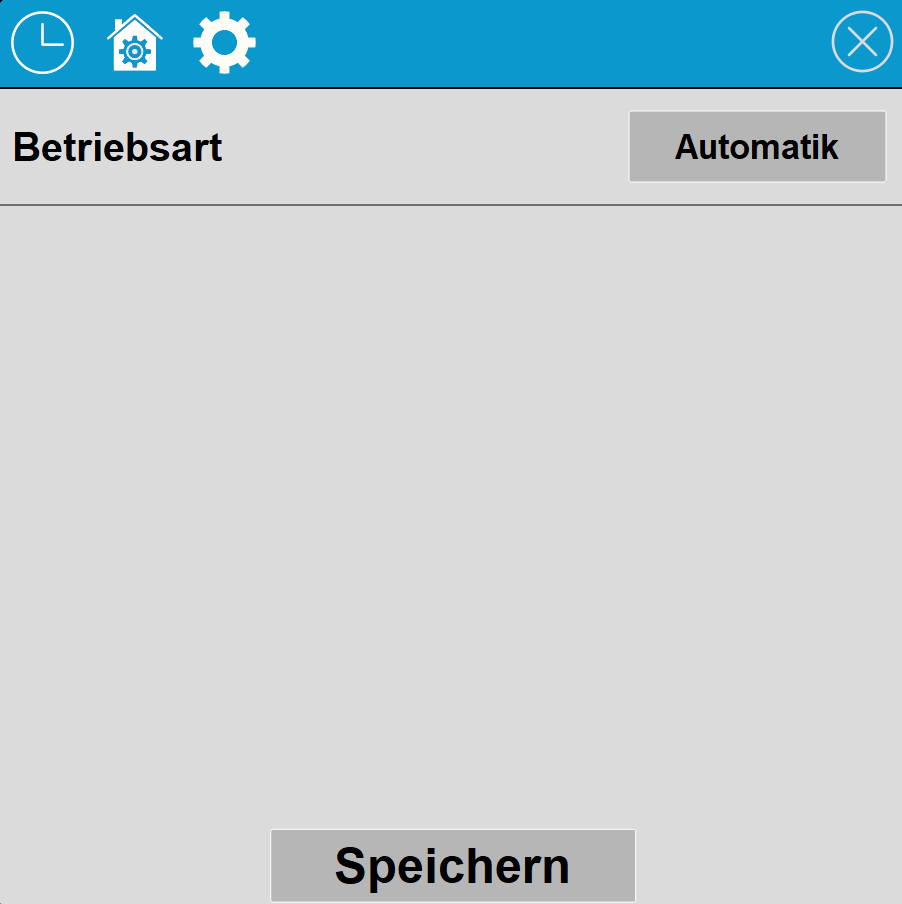
The detector is configured via the Operating mode button. Automatic: automatic mode, permanently on (light always on), permanently off (light always off).
In the title bar of the dialog the functions Time switch, Presence and Settings are accessible via the respective icons.

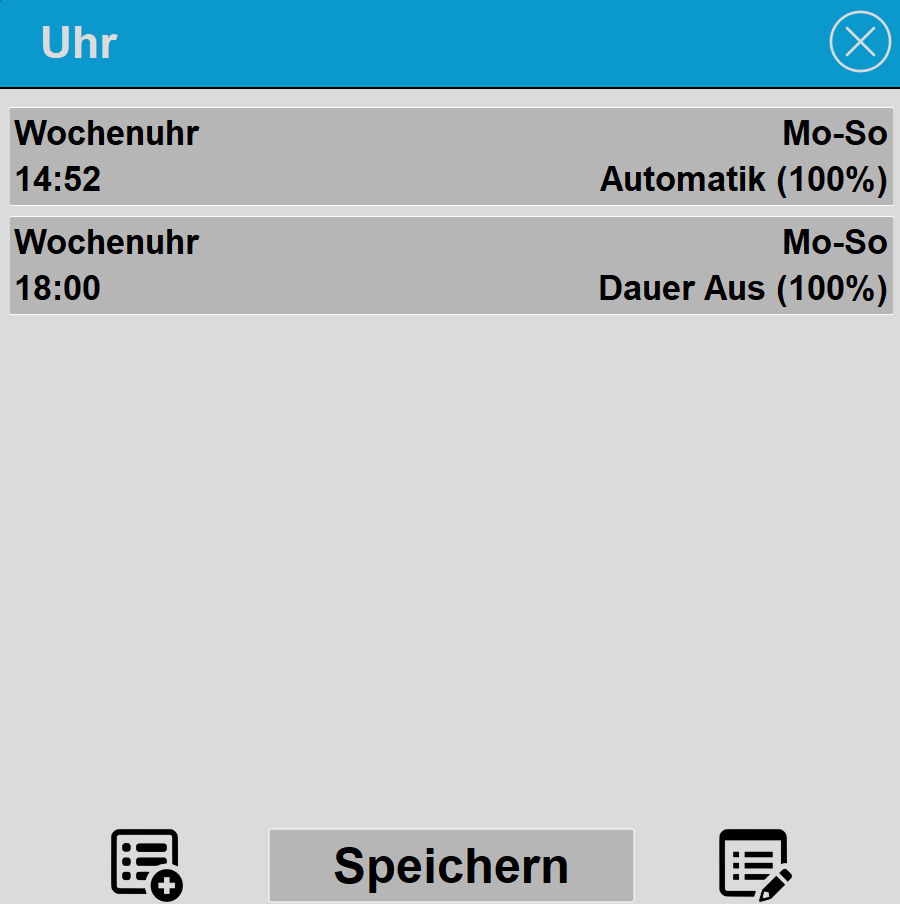
With the Time switch function the lighting can be switched under time control. To add a new switching time, press the symbol at the bottom left; to delete or sort switching times, click on the symbol at the bottom right.
Using the calendar icon in the switching time list, switching times can be imported from a calendar file (iCal, *.ics) - via a link (including Google Calendar, Apple iCloud, Google Drive and Dropbox), from a file or from the clipboard. One on (value 1) and one off (value 0) switching time are created per event. For details on the import see Block Time switch; where to find the calendar links in the respective services is described in the help of the Holiday time clock.
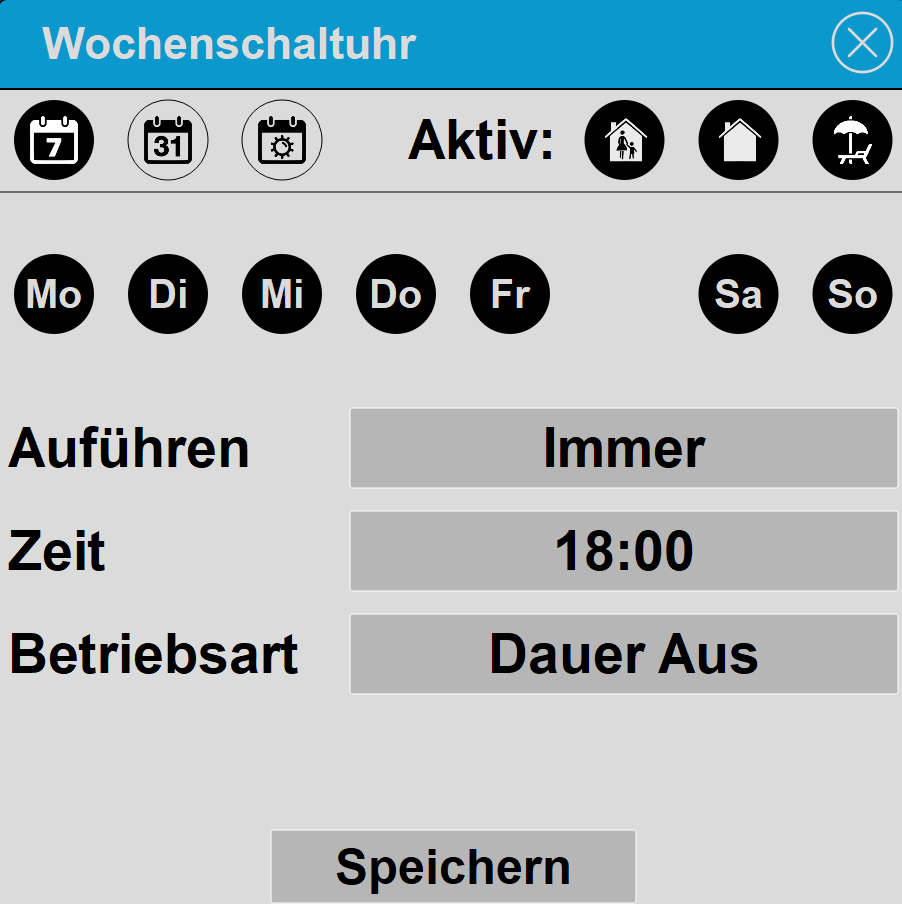
In the first row the symbols for the type of clock and presence are displayed. On the left side the type of clock is set. As type, Week clock, Date and Sunrise/Sunset can be selected. On the right side it is set when the clock should be active (dark highlighting means active).
On the right side it is set when the switching time should be active. Present, Absent and Holiday. This allows, for example, selecting that a switching time is only executed when you are present, but not when Absent or on Holiday. If none of the three symbols is active, the switching time is not executed; in the overview Clock deactivated is then displayed.
Under Execute, once or always can be selected. With once, after execution the symbols Present, Absent and Holiday are deactivated again and thus the switching time is also deactivated.
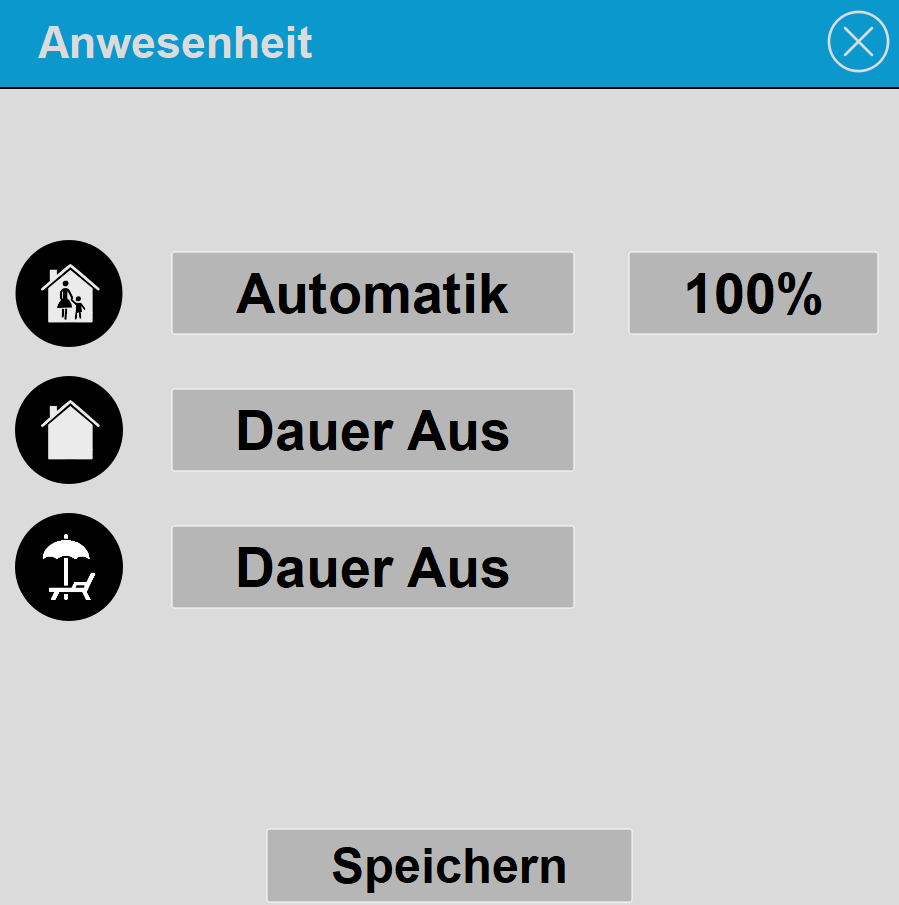
Via this dialog the operating mode can be set when the Presence status changes. For example, when switching from Present to Absent or Holiday, in the example above automatic mode with 100% brightness is set.
For each of the three states Present, Absent and Holiday it is set via the respective symbol whether an operating mode should be executed when switching to this state (dark background is active).
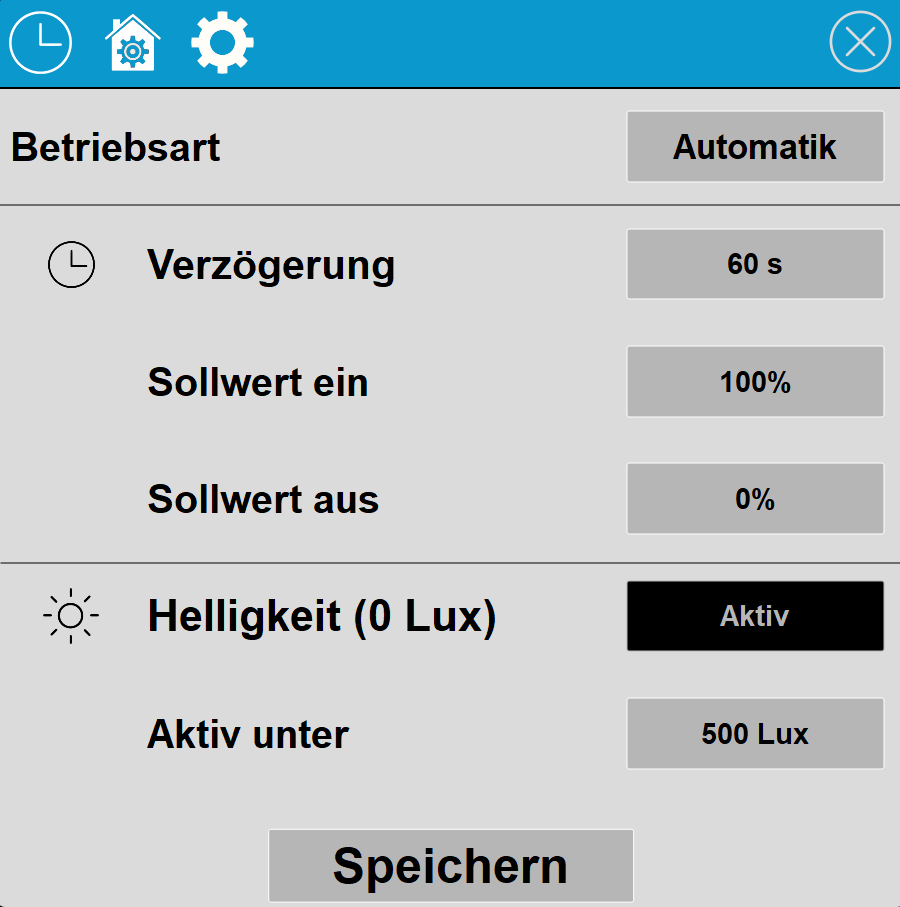
The Operating mode button switches between Automatic, Permanently on and Permanently off. The gear symbol in the title bar shows and hides the following settings:
Display |
|
| Display | Display Block, Basic Screen or List. |
| Text | Text to be displayed. The size of the text is automatically scaled with the control element. Line breaks can be inserted with the special character "\n", for example "Line1\nLine2"; a maximum of 2 lines is possible. |
Frame |
|
| Frame | See general properties |
Connected variables |
|